Zaxaa Pages
This document explains the steps required to install the Universal Script on your Zaxaa pages.
Step 1 – Tracking your Products
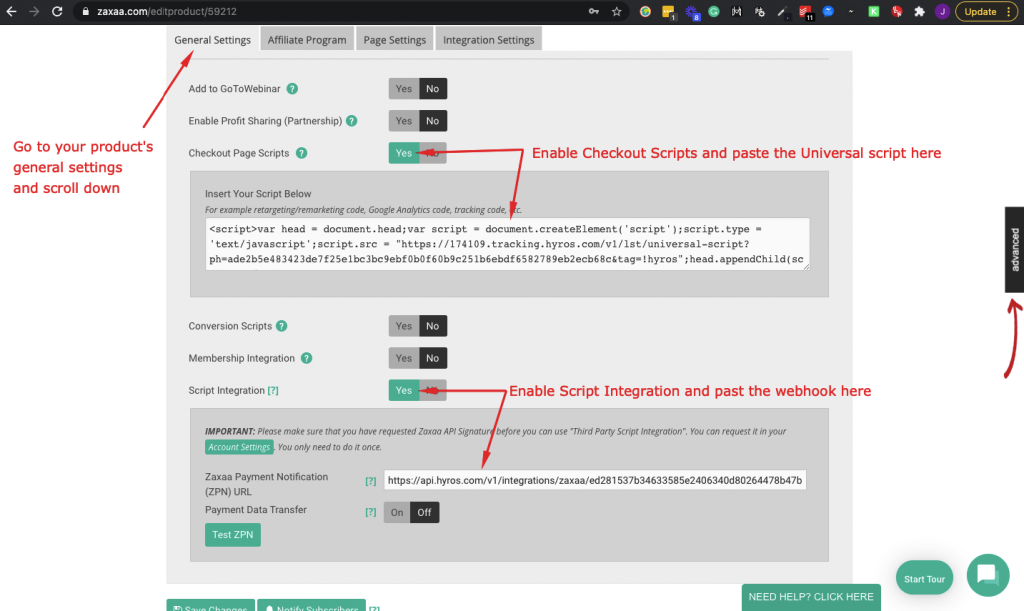
- Go inside your Zaxaa account and find the product menu. Click “Manage” and select the product that you want to track.
- Go to the product’s general settings and scroll down to the Script Integration area.
- Enable Script integrations and paste the API Webhook inside the ZPN URL.
- Copy the following Universal script:
- Go back to the product inside Zaxaa that you added the webhook in the last step, then paste the Universal script inside the Checkout Page Scripts area. Click Save Changes.
Here is a visual example of where to paste the webhook and universal script:
This process needs to be repeated for each product that you want to track inside Zaxaa.
Step 2 – Tracking your frontstore pages
After all products have been set up: go to your frontstore settings here:

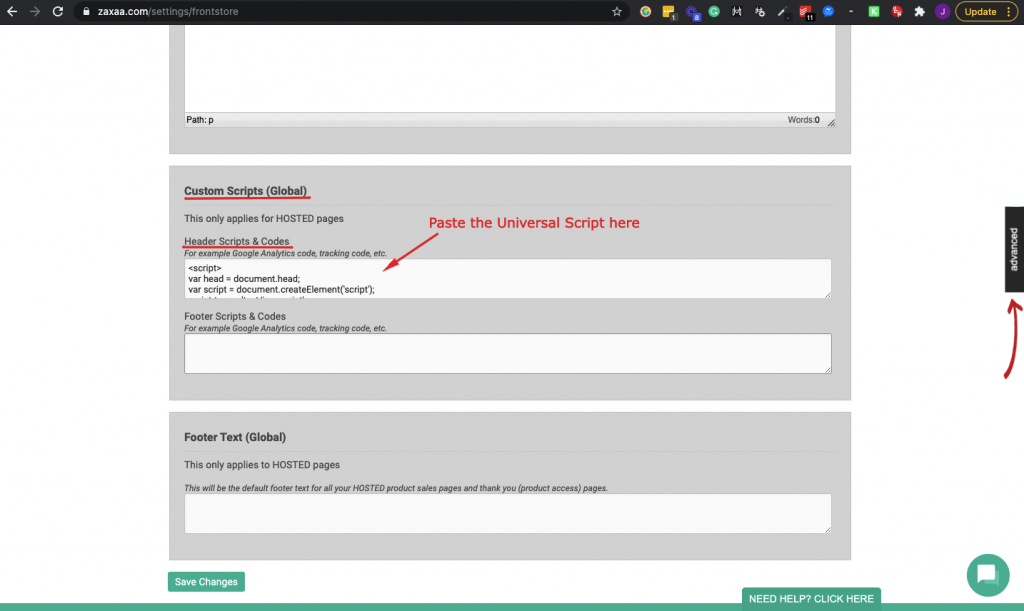
Then scroll down to “Custom Scripts (Global)” and paste the same Universal Script as above inside the Header Scripts & Codes section. Click save changes.
Here is an example:
That concludes the set up. Please test your funnel using our testing app HERE.
